Get Directions to Legal Land Descriptions | LSD Navigation
Get driving directions to legal land descriptions, LSDs, and quarter sections. Navigate to remote well sites, field locations, and rural properties using DLS or NTS coordinates with turn-by-turn instructions.
Navigate directly to legal land descriptions. Township Canada combines legal land lookup with driving directions, so you can enter an LSD, quarter section, or NTS location and get turn-by-turn navigation to that exact spot. Essential for field workers, surveyors, and anyone traveling to rural locations identified by legal land descriptions.
Why use Township Canada for directions?
The problem: You have a legal land description (like SW 25 24 1 W5) but Google Maps doesn't understand it. You'd need to manually convert to coordinates, then enter those into a navigation app.
The solution: Township Canada understands legal land descriptions directly. Enter the LLD, get the coordinates, and launch turn-by-turn navigation-all in one workflow.
Who needs directions to legal land descriptions?
Oil & Gas Field Workers
Navigate to well sites, pipeline facilities, and lease locations using LSD or quarter section identifiers. Get accurate coordinates for remote locations where addresses don't exist.
Land Surveyors
Travel to survey boundaries, corner posts, and property markers identified by legal land descriptions. The integration with Google Maps provides street view for approach planning.
Real Estate Professionals
Visit rural properties and agricultural land parcels for site assessments. Share exact coordinates with clients and colleagues.
Agriculture & Farm Operations
Navigate to specific field locations, grain bins, or equipment sites using legal land descriptions common in farm management.
Emergency Services & Utilities
Respond to incidents at locations identified by legal land descriptions. Get real-time traffic updates and optimal routing.
Getting directions
Access directions from the Directions link in the main navigation menu, or click the Directions button on any search result.
From the Directions page
Open Directions
Click Directions in the main navigation to open the directions panel.
Enter start location
Type a legal land description, address, or coordinates in the Start field. Your current location can also be used as the starting point.
Enter destination
Type your destination in the Destination field. This can be a legal land description, address, or coordinates.
Get directions
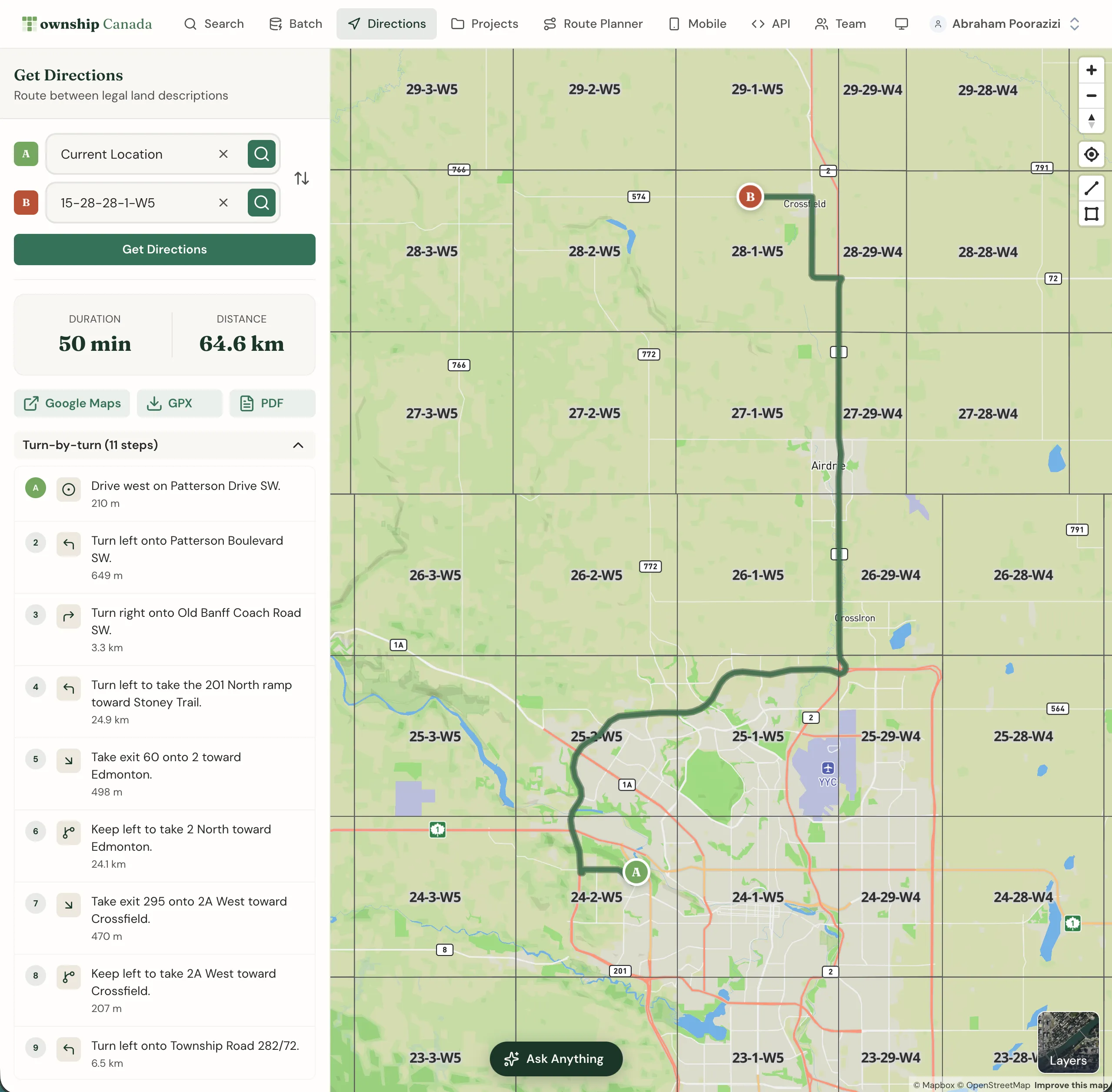
Click Get Directions to calculate the route. The map displays the route with turn-by-turn instructions in the panel.
From search results
- Search for a legal land description using the search box
- Click the Directions button on the search result card
- Choose whether to set this location as your start or destination
- Enter the other location and get directions
Viewing route details
After calculating a route, the directions panel shows:
- Total distance and estimated travel time
- Turn-by-turn instructions with street names and distances
- Alternative routes when available
Click on any step to highlight that segment on the map. The route line updates to show your position along the journey.
Swapping start and destination
Click the swap button between the start and destination fields to reverse your route direction. This is useful for planning return trips.
Opening in Google Maps
For full navigation with voice guidance:
- Get directions in Township Canada
- Click See it on Google Maps
- Google Maps opens with your route ready for turn-by-turn navigation
This provides access to:
- Voice-guided turn-by-turn navigation
- Real-time traffic updates
- Alternative route options
- Street View for destination preview
Route Planner for multiple stops
For trips with multiple destinations, use the Route Planner feature. Route Planner optimizes the order of your stops for the most efficient route. Pro plans include 10 optimizations per month; Business plans include unlimited optimizations.
- Open Route Planner from the main navigation
- Add multiple locations from search or Projects
- Click Optimize to reorder stops efficiently
- Get directions for the complete multi-stop route
See the Route Planner for more details on multi-stop route optimization.
Exporting routes
After calculating a route, you can export it for use in other applications:
- GPX: Download the route for GPS devices and navigation apps
- PDF: Export a formatted route report with turn-by-turn instructions (Pro and Business)
Click the export button in the directions panel to download your route.
Using directions on mobile
Download the Township Canada mobile app for field navigation (included with every paid plan):
- Search for legal land descriptions on the go
- Get turn-by-turn voice navigation
- Purpose-built for field use in rural Western Canada
See the Mobile App guide for setup instructions.
Related guides
- Search & Convert Locations - Find locations to navigate to
- Projects - Save frequently visited locations
- Mobile App - Turn-by-turn navigation in the field
Related Guides
Supported Coverage & Regional Limitations
Which provinces and territories does Township Canada cover? Understand coverage by survey system, resolution limits, and known gaps in Winnipeg and unsupported provinces.
Dominion Land Survey (DLS) System Explained
Complete guide to the Dominion Land Survey system used in Alberta, Saskatchewan, Manitoba, and BC. Learn about townships, ranges, sections, and meridians.
How Many Sections in a Township?
A township contains 36 sections, each 1 mile square (640 acres). Learn how Canadian townships are divided into sections, quarter sections, and LSDs.